Pick a photo. Hold the moment.
Choose from recent photos with the phone-friendly remote. Your selection stays on screen while new photos arrive.
 SYRONIUSFRAME
Bring selected photos into OBS. Choose the moment, show its camera details, and share it with your audience.
Part of FRAME. Runs on your own computer.

A few taps. A different perspective.
Your photos, with simplified Photo Stage controls. This example is not connected to OBS.
Made for the moment
Stay with a photo that matters, or let the next one take its place.
Choose from recent photos with the phone-friendly remote. Your selection stays on screen while new photos arrive.
Show available camera and exposure details, or hide them and give the photo your audience’s full attention.
In your FRAME installation, Follow latest shows the newest published photo and follows subsequent uploads.
Play a slideshow or pause on a particular image. With playback paused, scroll a tall photo from top to bottom in one pass.
02 From camera to audience
Upload once. FRAME prepares your photos for browsing in Gallery and presentation in Photo Stage.
Checks images, prepares JPGs, and saves available camera details.
Saved in your FRAME data folderBrowse the prepared collection.
Present your photos in OBS.
Both use the same published photo collection. Photo Stage currently requires the Photo Gallery service, including for its thumbnail picker. You do not need to open or browse Gallery before showing a photo in Stage.
Between upload and the stage
After a browser or camera FTP upload, Photo Pipeline checks the image, prepares a published JPG, and saves available camera details. It runs automatically in the background.
The prepared photo goes into your FRAME data folder, ready for both Gallery and Photo Stage. Pipeline also updates which photo is the latest, so Stage’s Follow latest can pick it up.
The Photo Stage dashboard’s Pipeline Activity panel shows queued photos and the processing stages of active photos. Use Portal when you want to change the preparation settings.
FRAME PortalPipeline
On the computer running FRAME, open http://localhost/dashboard.
This page appears when photo tools are enabled. Use FRAME’s local address; Pipeline settings are not available through the public Portal route.
These settings control how incoming photos are prepared and how long archived originals are kept.
On another trusted device on your local network, use the FRAME computer’s LAN address in place of localhost.
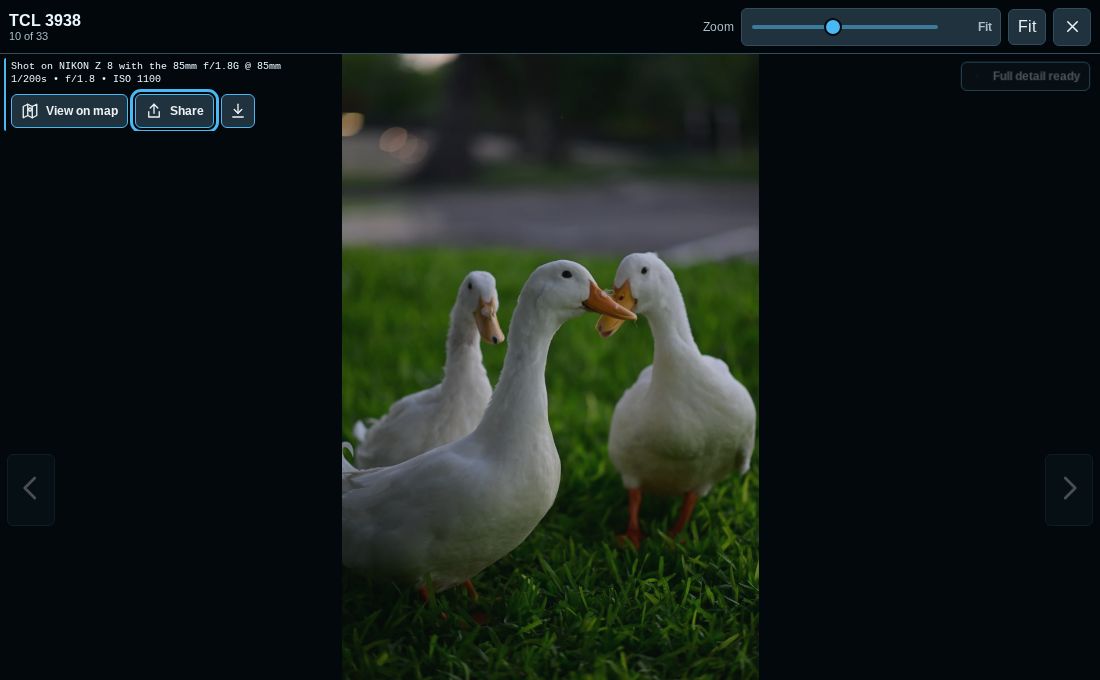
Inside FRAME
Gallery gives people a place to browse prepared photos at their own pace. Photo Stage lets you choose the image for your show.
This is a real Gallery screenshot. The interactive example above illustrates Photo Stage.
Explore Photo Gallery03 Make it part of your setup
Photo Stage runs with your own FRAME installation. Its controls open in a browser; its viewer becomes a Browser Source in OBS.
Read Photo Stage setupChoose Photo Stage, Photo Gallery, and an input such as Browser Photo Upload in Guided setup. FRAME enables Photo Pipeline automatically with its photo tools.
Open Photo Stage from your Portal dashboard. Copy its viewer URL and paste it into an OBS Browser Source.
Use your computer or a phone that can reach FRAME. Start with devices on the same local network.