SRT / SRTLA
Stream Management
Bring your live feed into OBS.
Create sender and player links, check connection measurements, and connect your stream to Overlays.
Works with FRAME’s included Video Relay.
Explore Stream Management SYRONIUSFRAME
The FRAME toolkit
Bring in a live feed. Put photos on screen. Give your team a way to listen. Start with what you want to do.
Find your toolsA modular production toolkit, running on your own computer.
 Example output
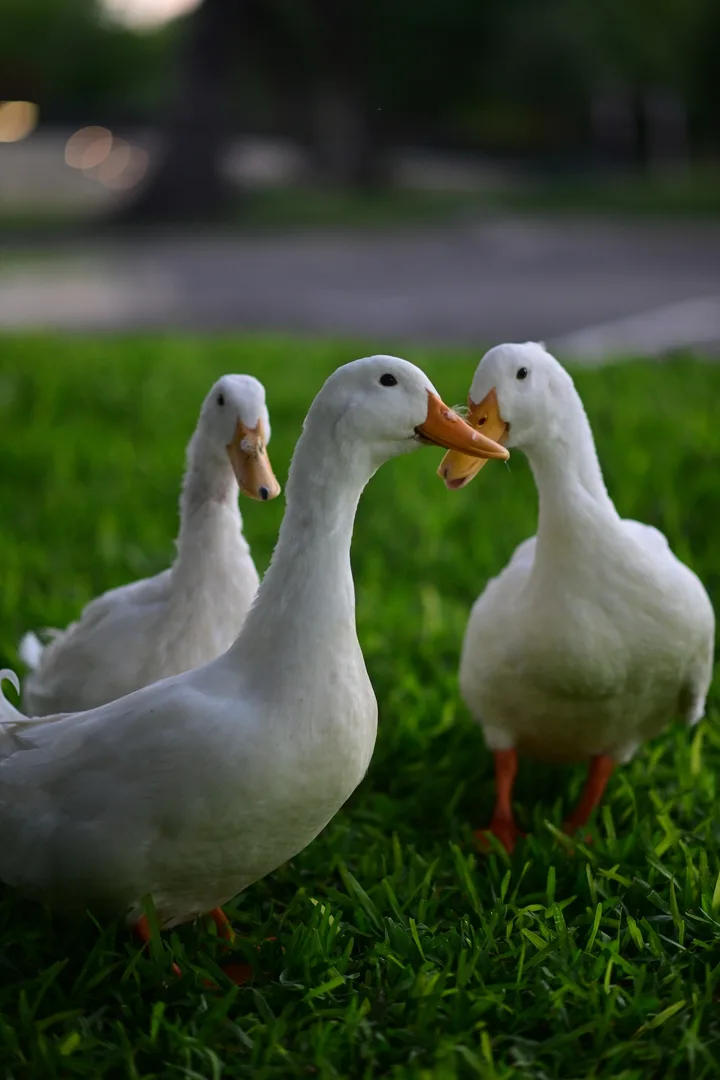
Your photos. On the live stage.
Try the interactive demo01 Live production
Get a feed into your production, add useful information, and keep your team listening.
Bring your live feed into OBS.
Create sender and player links, check connection measurements, and connect your stream to Overlays.
Works with FRAME’s included Video Relay.
Explore Stream ManagementPut useful stream information on screen.
Add stream health or live photo upload progress to your broadcast using an OBS Browser Source.
Choose a feed and adjust its appearance.
Explore OverlaysLet your team hear a live audio feed.
Capture an audio source in your browser and share its listener link with a producer, moderator, or remote helper.
Use a microphone, mixer output, or virtual audio cable.
Explore Audio Monitor02 Photos
Send it in, prepare it once, then choose how to share the moment.
Send photos from a phone or computer.
Select or drag in photos and follow their upload progress. Photo Pipeline takes care of preparation.
Called Browser Photo Upload in FRAME setup.
Photo Upload documentationSend photos straight from your camera.
Use a compatible camera’s FTP upload feature to feed the same photo pipeline while you keep shooting.
Requires camera and network configuration.
Camera FTP Upload documentationGet incoming photos ready to share.
Check images, prepare published JPGs, and save available camera details for Gallery and Photo Stage.
The preparation step between inputs and outputs.
Photo Pipeline documentationGive your photos a place to be explored.
Browse prepared collections organized by day, and open individual photos with their available camera details.
Share a gallery when remote access is configured.
Explore the GalleryYour photos. On the live stage.
Choose a photo from the remote, show its camera details, or let a slideshow carry the moment.
Explore Photo StageSelect a photo. Try a slideshow.
See what the controls feel like.
03 Your setup
Find what’s running, open the controls you need, and look after your devices.
One place to open your FRAME tools.
See which tools are enabled, check service status and storage warnings, and find out what needs attention.
The dashboard for your own FRAME installation.
Portal documentationKeep your Belabox connected to FRAME.
Use remote belaUI controls, select relay destinations, manage photo transfers, and inspect network diagnostics.
Initial agent installation needs local SSH access.
Belabox Manager documentationYour first FRAME setup
Choose a useful workflow, then follow the setup guide to run FRAME on your computer. Each tool’s documentation explains what it needs.
A photo workflow, an incoming video feed, or audio for your production team.
Docker runs the FRAME services. The setup documentation walks you through the requirements.
Find your enabled tools, check their status, and put your first workflow to work.