Give each feed a name.
Keep the field camera and backup feed recognizable, with a separate profile for each.
 SYRONIUSFRAME
Bring an incoming video feed into OBS. Give it a name, copy the links for each end, and see how the connection is doing.
Part of FRAME. Runs alongside Video Relay on your own computer.
01 Get to know the controls
Name a stream, check its current measurements, and find the links you need to use it.
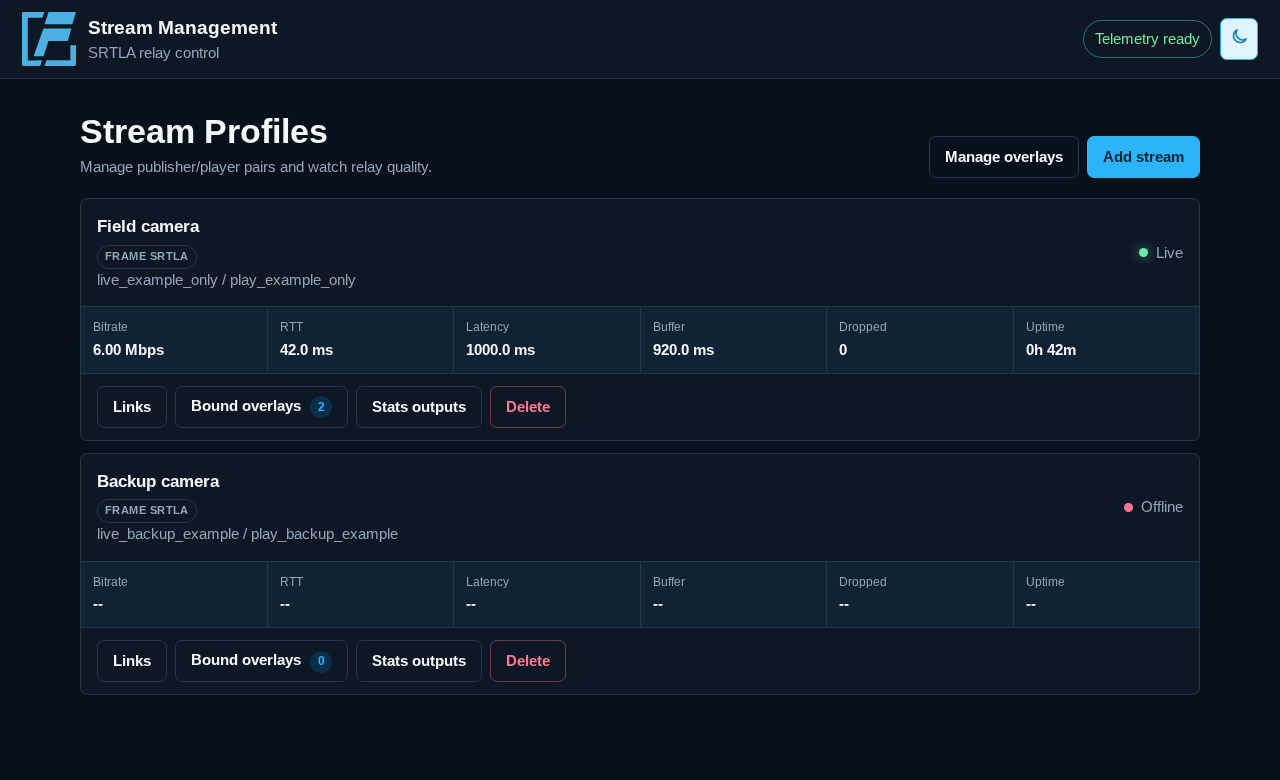
Keep the field camera and backup feed recognizable, with a separate profile for each.
Read the latest connection measurements. An offline feed shows unavailable values.
Find sender, player, and statistics links alongside the Overlays sources using that stream.
02 From sender to screen
Video Relay carries the feed. Stream Management creates its links and shows the connection information.
THE VIDEO FEED SRT / SRTLA in · SRT out
A compatible device or app sends your feed using the publisher link.
Receives the incoming feed and makes it available to a player.
Uses the SRT player link to bring the video into your production.
The relay also reports statistics. You can check them yourself or show selected values on your broadcast.
Your stream profiles and their current measurements.
Turn those measurements into an OBS Browser Source.
Stream Management is the control page; your video travels through Video Relay. Read about Video Relay
03 Two ends of one feed
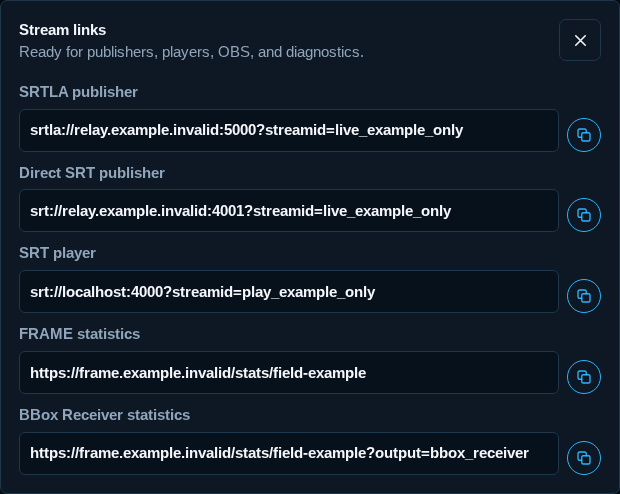
FRAME calls these the publisher and the player. Stream Management keeps both ready to copy.
Your real publisher and player links contain private stream keys. Keep them within your setup.
04 Read the connection
A connected feed can still have changing measurements. Try three examples, then see what each number tells you.
Choose a situation to change the sample readings.
EXAMPLE STREAM
Steady example: the feed is Live, with 6.2 Mbps arriving and no packets reported as dropped.
This simplified illustration runs entirely in the page. It does not connect to FRAME or OBS. The values are examples, not recommended settings or automatic quality thresholds.
The sample receives 6.2 Mbps, with a 42 ms round trip and no reported drops. “Live” tells you the source reports a connection.
The sample still says “Live,” but shows 2.4 Mbps, a 180 ms round trip, and 18 reported drops. Read the measurements together.
No connected feed is reported, so current readings are unavailable. Check the sender and its route to FRAME; this status alone does not tell you the cause.
The real dashboard refreshes its readings regularly. Available measurements depend on the source.
05 Put the information to work
Use a stream’s statistics in your broadcast or pass them to a compatible app.
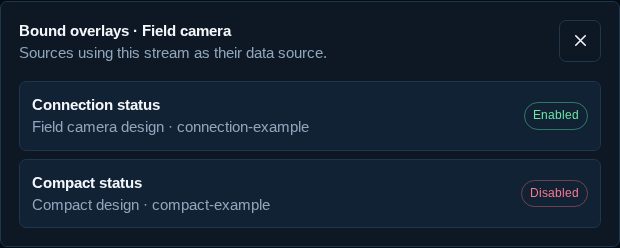
Bound overlays lists the Overlays sources linked to a stream, including whether each is enabled. Open the overlay editor to choose what appears and how it looks.
Stats outputs provides read-only data links for supported apps. Choose FRAME’s native format or BBox Receiver compatibility, used by tools such as IRL+ Chat.
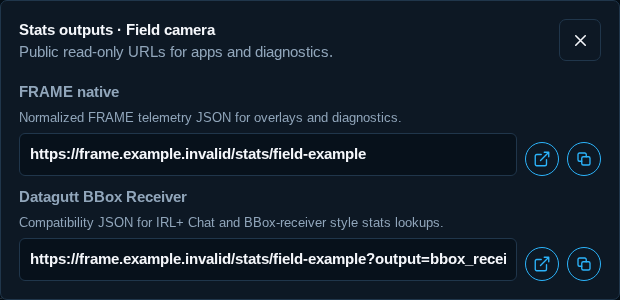
These are data links, not a video player or a public management page. Share only the statistics you intend to make accessible.
06 Set up your own feed
You need a compatible sender, FRAME’s Video Relay, and OBS or another SRT player.
Read Stream Management setupUse Guided setup to enable Video Relay and Stream Management together. Open Stream Management through Portal, or at http://localhost/slsui on the FRAME computer.
Add a stream profile. Put its publisher link in your sending app or device, then add the SRT player link to OBS using the setup guide.
Start the sender and check its profile. When you want connection information on screen, select that stream as the feed for an Overlays Source.
The player link defaults to localhost for OBS on the FRAME computer. If OBS runs on another trusted local-network computer, replace that host with the FRAME computer’s LAN address. Your sender also needs a reachable address for the relay.
A remote sender needs a configured relay host and a route that carries UDP video, such as suitable port forwarding or a VPN. FRAME’s Hybrid web tunnel does not carry SRT or SRTLA video.
Keep management controls local or behind appropriate access protection. Selected public statistics routes are separate. Check Video Relay’s network requirements.