
The photo workflow
From your camera.
To your audience.
Take the photo. Let FRAME prepare it. Give people a gallery to explore, or bring the moment into your live show.
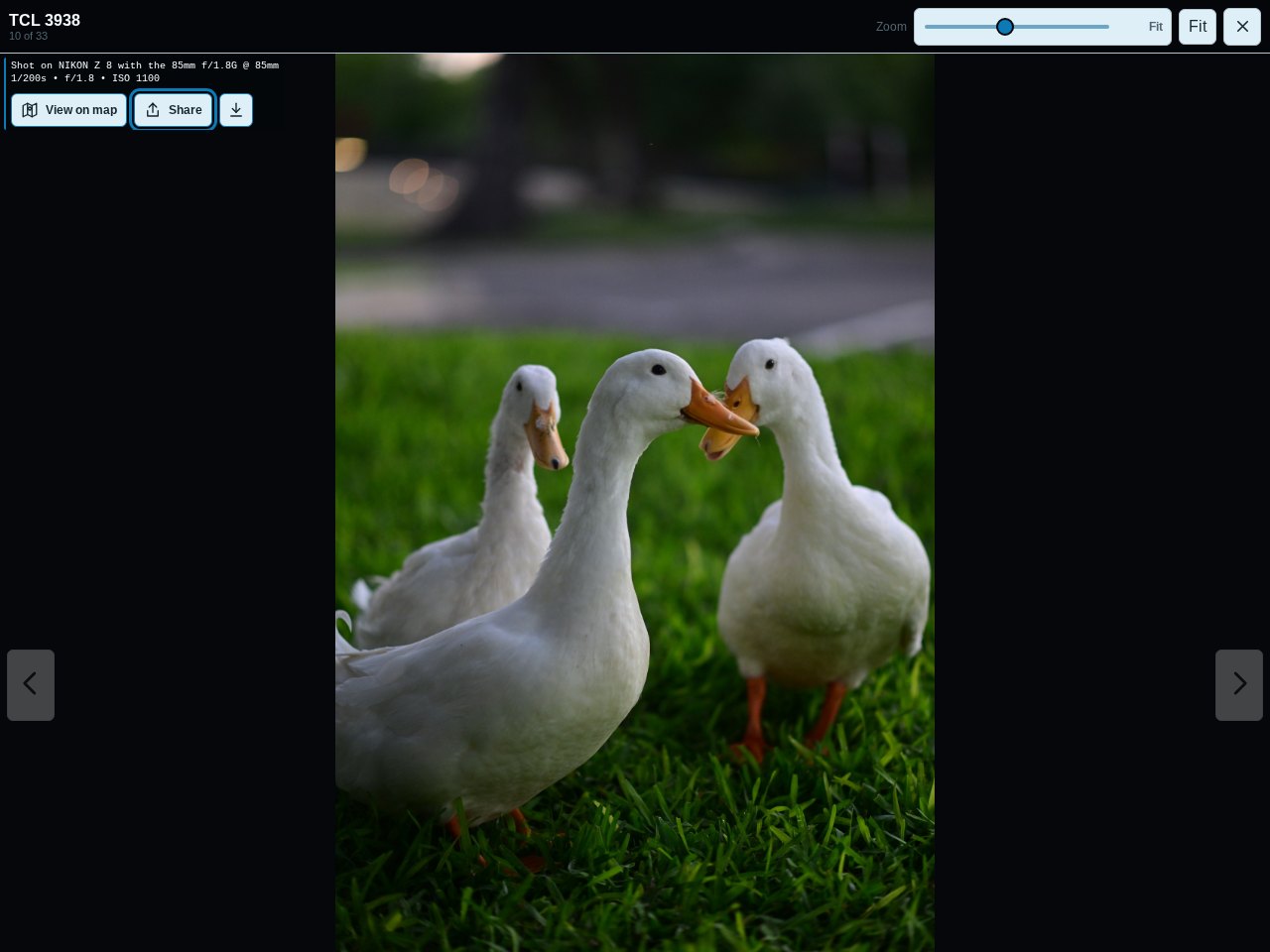
01 A photo’s journey
Prepare once.
Choose how to share.
Gallery and Stage use the same prepared collection. Use either destination, or both.
01 Bring photos in
02 Get them ready
Photo PipelineCheck each image, prepare a gallery JPEG, and save available camera details.
Saved on your computerPrepared photos and their details live in your FRAME data folder.
03 Use either, or both
Does Stage need Gallery?
Photo Stage needs the Gallery service and Photo Pipeline enabled in your installation. You do not have to open or browse Gallery first: Gallery and Stage are parallel ways to use the prepared photos.
02 Your name. Your collection.
A gallery that
feels like yours.
Add your name, a gallery title, and your logo. Choose the cover and photo order for each album, so the collection opens the way you want it to.
Set shared FRAME colors in the Portal. Gallery uses that theme, with day and night appearances visitors can switch between.
Explore Gallery setup

One owner’s setup, shown in both appearances. Select a screenshot to enlarge it.
Your name and logo
Keep your identity across albums with site-wide branding.
Your cover and order
Choose an album cover and sort photos by processing time, filename, or capture time.
Your download setting
Decide whether visitors can download the published JPEGs.
03 Share & connect
Share the album.
Or just that moment.
Someone wants one photo? Send them straight to it. Want to share the whole collection? Use the album link.
Gallery offers a QR code and a link to copy. Scan on another device, or paste the link into a message.
The QR code shares the address. Your Gallery must be reachable by the person opening it; sharing outside your network needs configured remote access.
See local and Hybrid access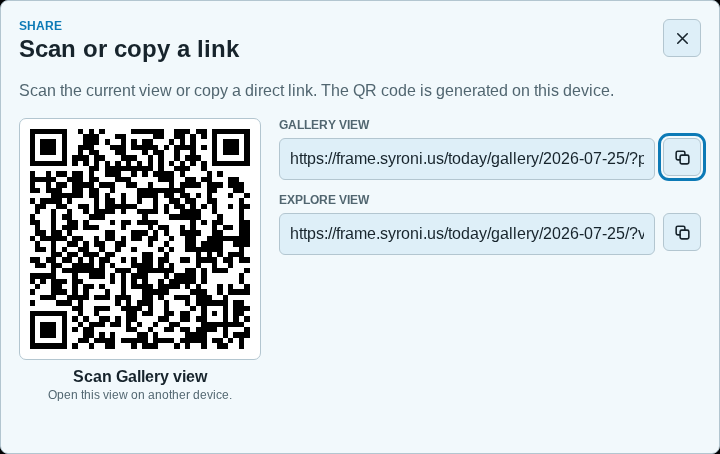
Keep the connection
They found your photos.
Help them find you.
Add your social profiles, website, and other destinations. Choose the labels, order, and optional custom graphics for your links.
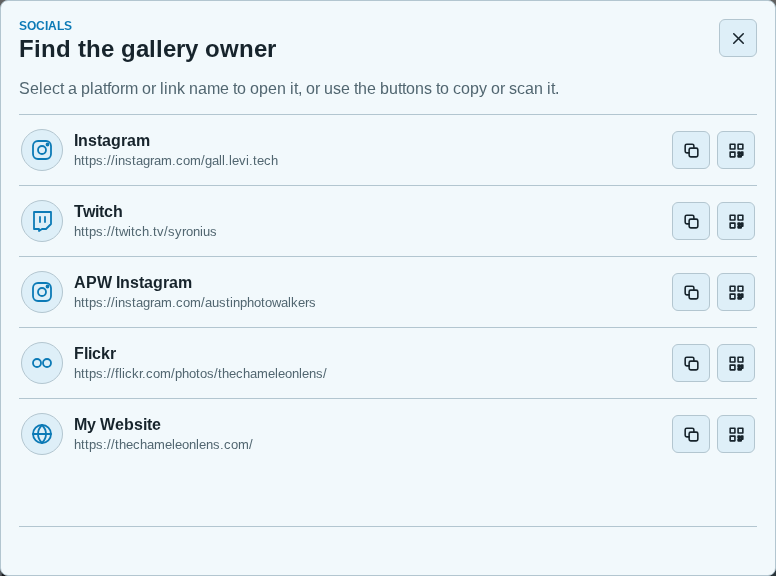
Open. Copy. Scan.
Open a profile on this device, copy its address, or bring up a QR code for a phone.
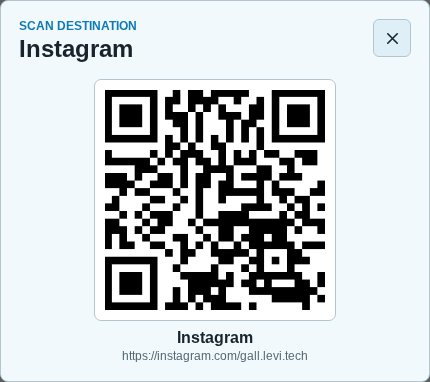
Socials helps visitors open your links. Posting photos to those platforms remains your choice.
A little support goes a long way
Give appreciation
somewhere to go.
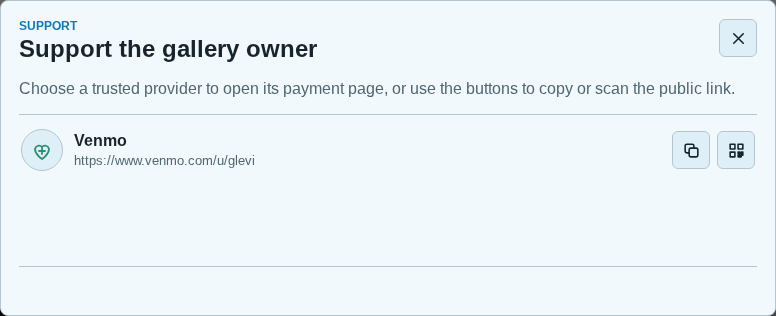
Add the support links you already use. Visitors can open the provider’s page, copy the address, or show a QR code.
Use a public link from services such as Venmo, Ko-fi, Patreon, or Buy Me a Coffee, or add a custom destination.
Support is optional. Payments happen on the provider’s site; FRAME presents the links you configure.
04 The other destination
Your photos.
On the live stage.
Present the same prepared photos in OBS. Choose the moment, show its camera details, and use the phone-friendly remote to keep the show moving.
Try selecting a photo, hiding the details, starting a slideshow, and scrolling a portrait in our interactive example.
Try the Photo Stage demo One photo.
A shared moment.
Illustrative website demo · no OBS connection
Build your photo workflow
Start with the way you shoot.
Set up FRAME on your computer, then enable the tools for the workflow you want.
Choose an input.
Use Photo Upload for trusted browser uploads, or Camera FTP Upload with an FTP-capable camera and its network setup.
Prepare and present.
Enable Photo Pipeline and Photo Gallery. Add Photo Stage when you want to present in OBS.
Make it yours, then share.
Set your branding, albums, and optional links in Gallery Admin. Configure remote web access if viewers will connect from outside your network.
A few setup details
Photo Pipeline prepares supported image files as JPEGs; camera RAW files are not supported. Gallery’s download setting applies to published JPEGs, while any retained upload originals stay private.
Camera FTP needs its own network route. It does not use the Hybrid web tunnel. Persistent storage keeps files between container replacements; keep a separate backup too.
Gallery Admin is protected. Public gallery links and optional social or support links do not give visitors access to your management controls.
Gallery screenshots captured from Syronius’s FRAME on 27 September 2026, using a selected photo shared with permission. The screenshots show real public links and QR codes. The Photo Stage example is an illustrative demo.