~1.5 seconds
The shortest target, for a connection that can keep up.
 SYRONIUSFRAME
Share a microphone, mixer output, or routed production mix with trusted listeners. They open a browser link; you choose the source and quality.
Part of FRAME. Runs on your own computer.
01 Try the mobile listener
Press Play once. Try a different delay or audio quality; the listener re-buffers and resumes while the source keeps streaming.
WORKING PHONE MOCKUP Try the controls
Local music example
White: playback · Amber: target · Blue: queued audio
More buffer trades immediacy for room to absorb uneven delivery.
Simulated buffer · audio arrives in chunks.
Press Play to start the illustrated buffer.
Illustrated listener, inspired by FRAME’s playback page.
Real local audio · simulated stream buffer.
One feed. Their choice of buffer.
The listener opens a browser link on their phone. Playback, volume, and stability are theirs to adjust. You set the audio quality for the source.
The music keeps moving, even while the listener is paused.
Seven real AAC encodes of the same music. Change quality while listening; the demo re-buffers and resumes automatically.
Estimated from the encoding target; excludes network overhead and capture upload. The listener count changes this estimate only.
Ready. Press Play on the phone to hear the music with 1.5 seconds of added delay.
In FRAME, these are targets behind the available live audio, not guaranteed microphone-to-ear times. This website adds a real browser delay to a local music sample and illustrates audio arriving in chunks. Pause silences the listener; Resume joins the current music. Buffer figures are simulated, not measurements of a FRAME connection. Nothing records your microphone or sends audio.
02 Create an audio source
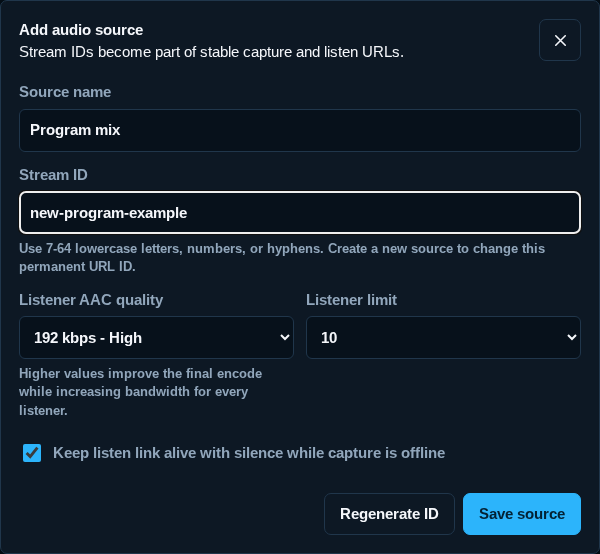
Start in Portal. Create one source for the audio you want to share, then choose how FRAME sends it to listeners.
Enable Audio Monitor in FRAME’s Guided setup, then open it from Portal. On the FRAME computer, the management page is at http://localhost/audio/admin.
Changing AAC quality during a live capture is saved for the next relay start. Stop and restart capture to use it; the source card distinguishes the next target from the active bitrate.
03 Keep the links together
Each source keeps its capture controls, listener link, and settings in one place, alongside connection and listener information.
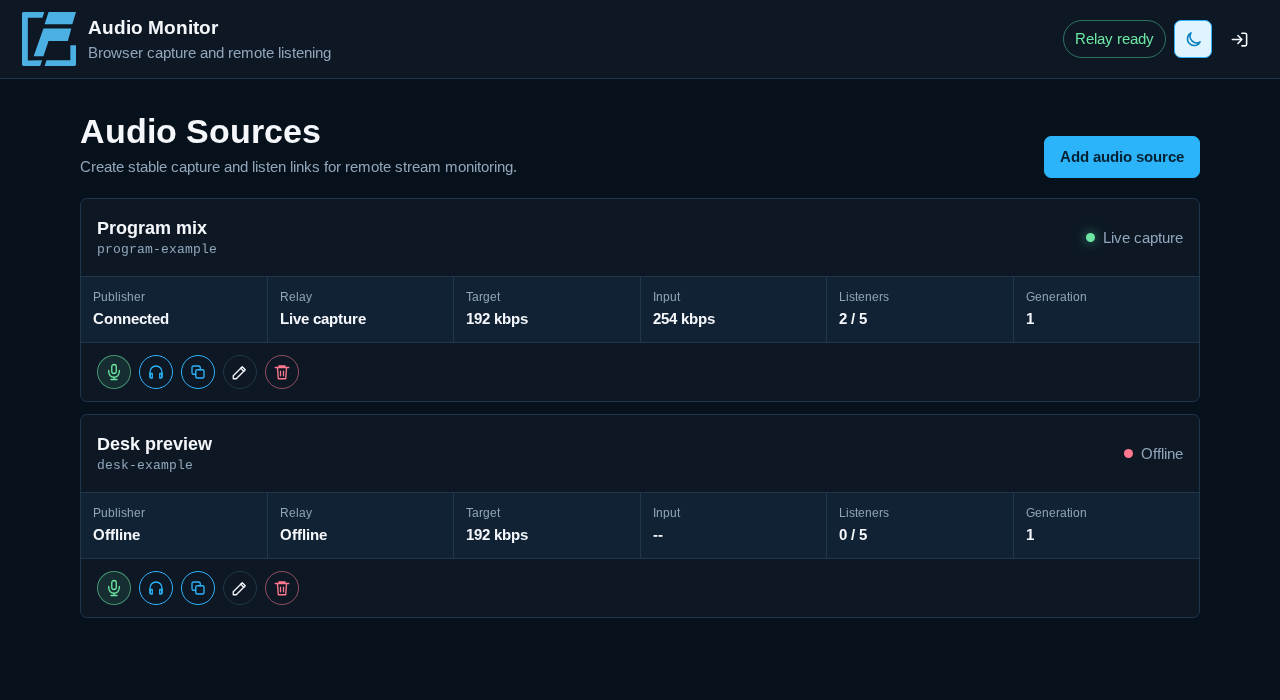
Use the computer with your microphone, mixer output, or routed production mix.
Share it with a trusted producer, moderator, or helper who needs to hear the feed.
Listeners use the browser on their phone or computer, with their own volume and stability choices.
Use localhost on the FRAME computer, or a reachable HTTPS address on another capture computer. A plain HTTP LAN address may not allow microphone access.
Devices on your network need a reachable FRAME address. Remote listeners need configured access, such as FRAME’s Hybrid setup. Share the listener page with the access controls appropriate to your setup.
04 Choose what they hear
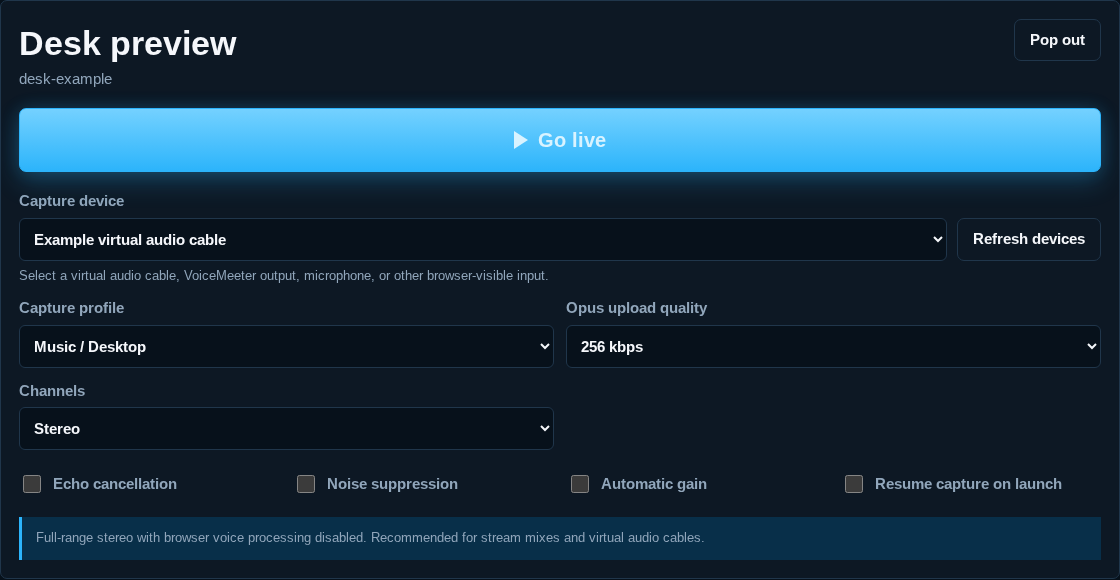
Open the capture page, allow microphone access, choose your audio input and preset, then press Go live.
96 kbps Opus · mono requestedEcho cancellation, noise suppression, and automatic gain are on.
256 kbps Opus · stereo requestedVoice processing is off. FRAME’s default capture preset.
510 kbps Opus · stereo requestedVoice processing stays off. The browser may cap the requested bitrate.
Opus upload quality controls what the capture browser sends to FRAME. Listener AAC quality controls what FRAME sends onward. Raising the output bitrate cannot recover detail missing from the input.
Choose Custom for upload targets of 96, 128, 192, 256, 320, or 510 kbps, mono or stereo, and individual processing switches. Stop capture before changing these settings.
For desktop or OBS audio, route the mix into a browser-visible mixer output or virtual audio cable. The capture page does not automatically capture every sound on your computer.
Resume capture on launch can try to restart capture when the page reopens. Keep the computer awake; changed devices, permissions, or another active capture can require a manual start. Each source accepts one capture page at a time.